
Approving events
Approvers keep the calendar tidy. Every event someone sends in waits for an approver before it goes up.
From the email
- You get an email for each new event. Press the Approve button in it. (Nothing happens just by opening the email: it opens a review page.)
- Read the details: dates, venue, who sent it.
- Choose one of the three options below. You do not need to sign in.
Email links work for 60 days. After that, use the admin.
From the admin
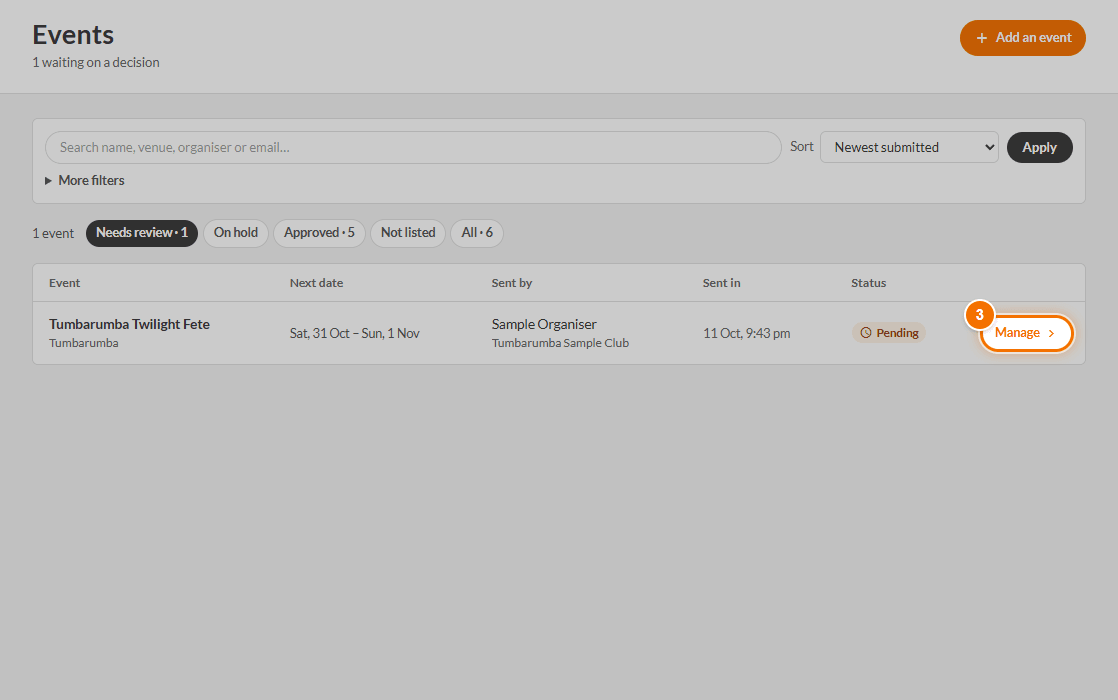
- Open Admin → Events. The Needs review tab shows what is waiting.
- Use the search, sort and More filters (town, category, submitted date, event date) to find things.
- Press Manage on an event to open it.
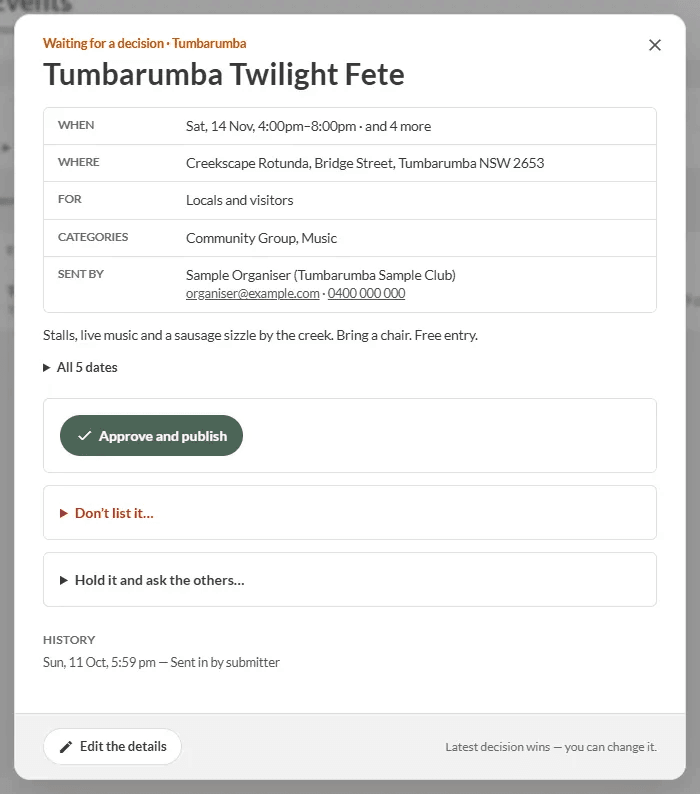
Your three choices
- Approve and publish - it goes live and the sender is told.
- Don't list it... - pick a reason (Doesn't meet community guidelines, Missing time or venue, Commercial listing, Outside the area, Already listed, or Other), add a note if you like, and press Send and don't list. The sender gets that sentence and a link to fix it and send it back.
- Hold it and ask the others... - takes it off the queue until someone decides. The sender is not told.
The latest decision wins, so if you tap the wrong button, you can change it. Community admins can also press Edit the details to fix something themselves.
TODO (client): The client's list says 'Approve events, send as alert'. Approving does not send an alert in the product today (alerts are written separately under Admin -> Notifications). Confirm what was meant.
Approving changes to a live event
When an organiser changes the date or time of a live event, it updates straight away. Any other change (title, description, venue, links, organiser) waits in the queue as an edit, and the event stays up as it was. The queue shows what changed.
- Approve puts the changes live.
- Don't list it... throws the changes away. The event stays up unchanged, and the organiser is told why.
If the organiser edits again while you are looking, you'll be asked to open it again, so you only ever approve what you saw.