
Emergency Notifications: turning them on and sending one
Emergency alerts let a community admin send notifications to there community with information about the what locals are doing to help each other. Things like town meetings, when and where water drops and power are available, or where locals can take livestock to where they can be protected.
This is not a replacement for the government provided services and apps - they are still required in your community.
The notifications go to phones straight away, by email to subscribers, and can put a red banner across the town's site.
Turning it on
Emergency notifications are switched on on request. Email support@whatwhenwhere.info from your admin address, say which town it is for, and the site owner will switch it on.
TODO (client): Confirm the request process. In the product today, any community admin already sees the emergency options under Admin -> Notifications, and the 'Emergency mode' switch lives with the platform admin under Admin -> Communities. Decide whether sending is to be restricted until the owner turns it on, and update this section.
Sending an alert
- Open Admin → Notifications and press Write one.
- Who gets it - choose the town. Add postcodes if only part of town should hear; blank means the whole town. (An emergency also reaches phones that did not give a postcode.) You can also send to one person by email.
- What it says - choose Emergency. Write a Title short enough for a lock screen, and a Message.
- When they tap it - choose what opens: Information only, an event, a business or place, a photo, or another page.
- When it goes - Now, or Later with a date and time.
- Tick For an emergency: also show the red banner across the town's site if you want the banner.
- Check the preview, then press Send it.
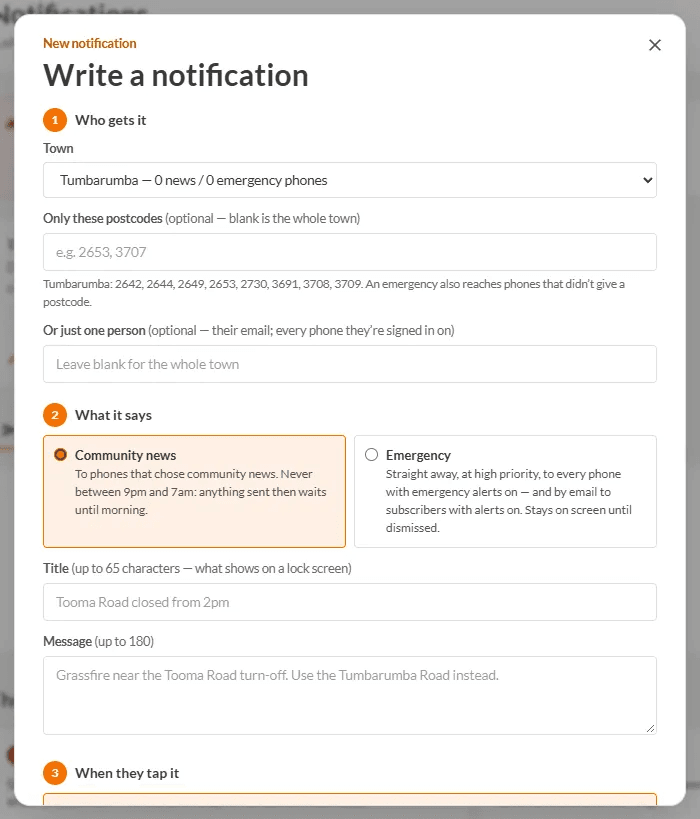
Emergency notifications go out at once at high priority, to every phone with emergency notifications on, and by email to subscribers who have notifications on. They are not held back overnight.
The red banner
On the town's card in Admin → Notifications:

- Show the emergency banner turns it on; the same button turns it off again (Emergency banner is ON - turn off).
- Edit what the banner says sets a Heading, a Message and up to four Links (a full https:// address, or a page on the site). Leave the message empty and it shows your latest emergency alert.

Remember to switch the banner off when the emergency is over.
After you send
The Sent & scheduled tab shows how many phones took it and how many were emailed. Every send is kept with who sent it. Please keep emergency alerts for real emergencies: an alert that cried wolf is worse than none.